


2026 Kia Sportage Technology Guide: Master Every Feature at Greenway Kia West
2026 Kia Sportage Technology Guide: Master Every Feature at Greenway Kia West
Whether you just drove home in a new Sportage from Greenway Kia West in Orlando or you want to take advantage of every feature on your next drive, mastering these essential technologies elevates every mile.
1. Cabin Controls & Wireless Connectivity
Switchable Controller (HVAC & Audio Controls)
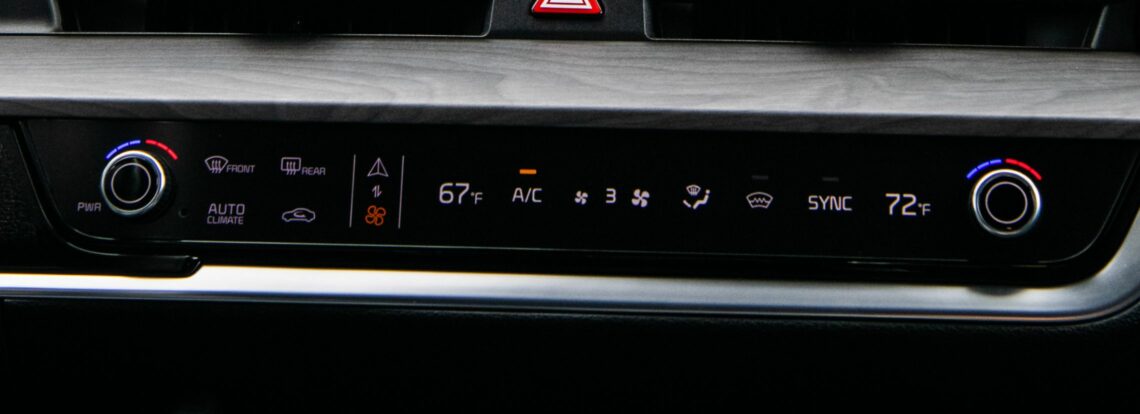
The 2026 Kia Sportage streamlines dashboard design by utilizing a dual-function touch control panel located directly beneath the hazard switch. A single tap switches the entire strip between climate control operations and infotainment/audio navigation.
Action Steps to Operate & Set Defaults:
- Switch Modes: Touch the Mode Switch Button on the left side of the control strip. Select the upward arrow icon for Infotainment or the fan icon for Climate.
- Set Your Preferred Default: Press and hold the Mode Switch Button, then select your preferred default panel (Audio or Climate). The strip will automatically revert to this mode after a few seconds of non-use.
Wireless Apple CarPlay® & Android Auto™

Enjoy wireless access to phone calls, streaming music, and turn-by-turn navigation apps directly on the central display without searching for a cable.
Setup Instructions:
- On the infotainment display, press the SETUP key.
- Tap Phone Projection > Device Connections > Add New.
- Ensure Apple CarPlay® or Android Auto™ is checked under Phone Projection settings.
- Pair your smartphone via Bluetooth® or connect via your phone’s official cable once to approve permissions on both phone and display screen.
- Tap the Apple CarPlay® or Android Auto™ icon on the vehicle home screen whenever you step inside.
Section FAQs: Cabin Controls & Connectivity
2. Smart Access & Convenience Features
Kia Digital Key 2

Kia Digital Key 2 turns compatible Apple iPhone®, Apple Watch®, Google Pixel™, and Samsung Galaxy® devices into fully functional vehicle keys using three advanced wireless protocols:
- NFC (Near Field Communication): Touch your smartphone to the outer driver door handle to lock or unlock, or lay your phone on the Wireless Phone Charger pad to start the engine.
- BLE (Bluetooth® Low Energy): Operates up to 49 feet away via your phone’s digital wallet app to lock/unlock doors, trigger the horn, or turn on climate control remotely.
- UWB (Ultra-Wideband): Provides effortless proximity detection. Keep your phone in your purse or pocket—as you walk within 6 feet of the vehicle, the doors unlock and the Smart Power Liftgate activates.
Sharing Access with Family & Friends:
- Open your smartphone’s Wallet App and tap Kia Digital Key 2.
- Tap the three-dot menu icon in the upper right corner.
- Select Invite and set permission levels (Unlock & Drive, Unlock Only, or Valet Mode).
- Send the invitation text message. You can revoke shared access at any time directly through your wallet interface.
Smart Power Liftgate with No-Touch Opening
Easily load cargo when your hands are full without needing to kick under the bumper or press a button.
- Activation: Enable via
Settings > Vehicle > Door > Smart Liftgateon your touchscreen display. - Operation: Lock all doors. Stand 20 to 40 inches behind the tailgate with your Smart Key fob or Digital Key 2 for 3 seconds. The hazard lights will flash and a chime will sound for 3 seconds, followed by two additional alerts before opening smoothly.
- Adjust Height: Customize how high the liftgate opens by selecting
Power Liftgate Opening Heightin the door settings menu.
Remote Engine Start
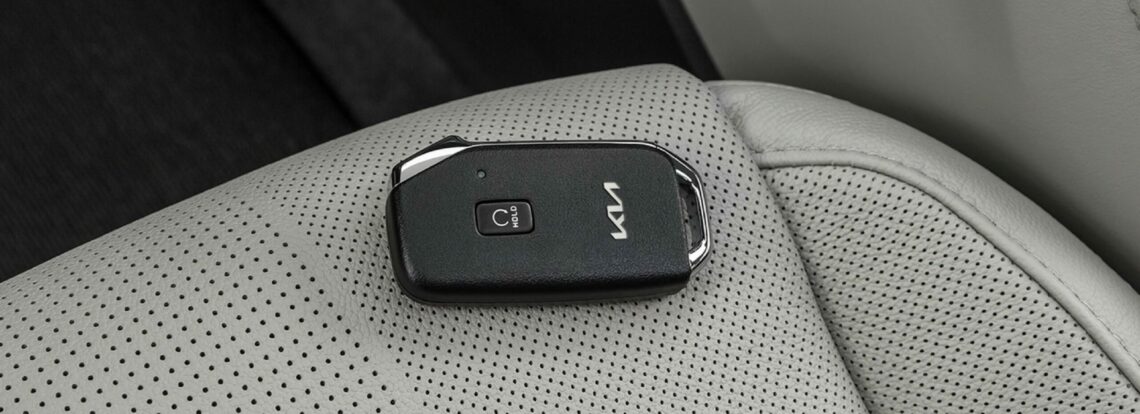
Pre-condition your cabin temperature from up to 98.4 feet (30 meters) away using your Smart Key fob:
- Press the Door Lock button on the key fob.
- Within 4 seconds, press and hold the Remote Engine Start button for more than 2 seconds. Hazard lights will flash 3 times.
- The engine will run for up to 10 minutes while maintaining your previous climate control settings. To stop engine start remotely, press the Remote Engine Start button once.
Section FAQs: Smart Access & Convenience
3. Advanced Driver Assistance Systems (ADAS) & Safety Tech
Auto Hold System
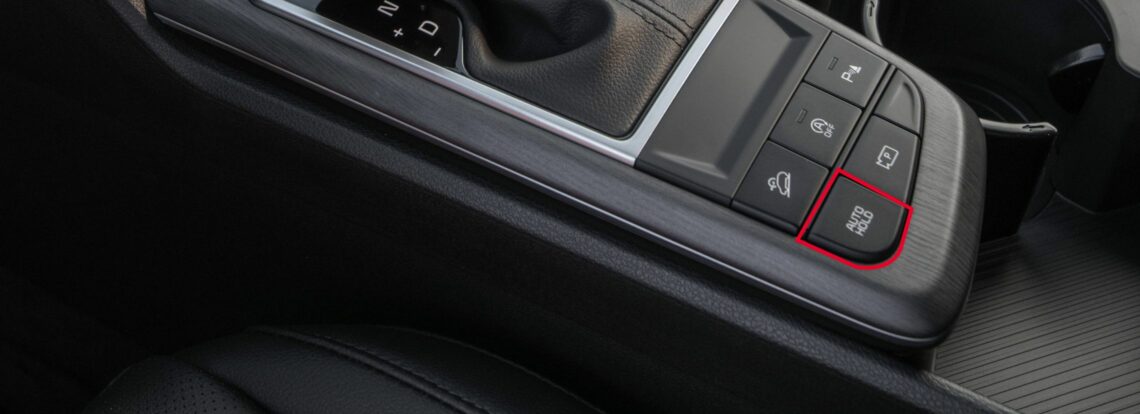
Auto Hold maintains braking pressure when coming to a complete stop, allowing you to lift your foot off the brake pedal in traffic jams or drive-thrus until you press the accelerator pedal.
| Cluster Notification | System Status | Action Required |
|---|---|---|
| Not Illuminated | Deactivated | System is turned off. Brake manually. |
| White Light | Standby Mode | System turned on; ready to engage when stopped. |
| Green Light | Active Mode | Brakes locked automatically. Remove foot from pedal. |
| Yellow Light | System Fault | Malfunction detected. Requires dealer inspection. |
To Activate/Deactivate: Press the Auto Hold button on the center console. When stopping with Green Active Mode engaged, press and hold the brake pedal before pressing the Auto Hold button to deactivate.
Surround View Monitor (SVM) & Blind-Spot View Monitor (BVM)
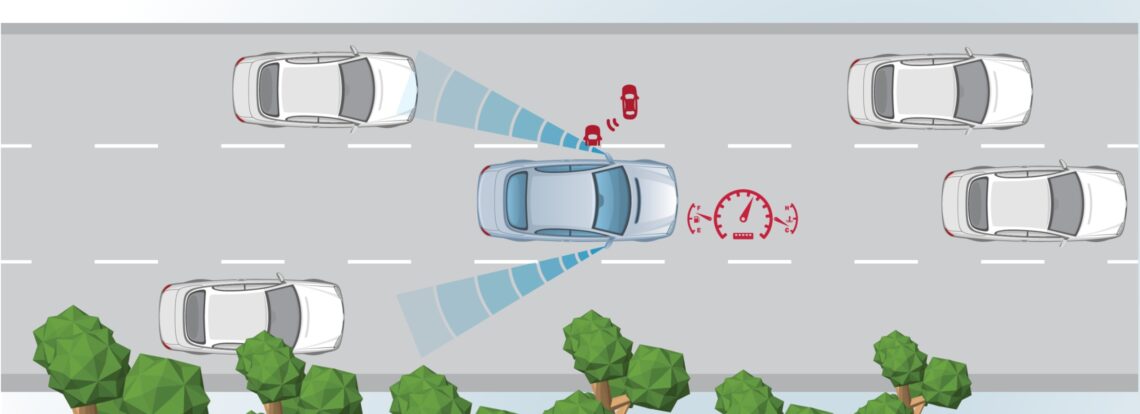
Parking in tight spots or changing lanes in Orlando traffic is stress-free with camera assistance:
- Surround View Monitor (SVM): Uses 4 cameras to project a 360-degree 3D rendering around the vehicle. The front camera engages automatically under 6 mph in Drive/Neutral. To turn off auto front camera: Navigate to
Settings > Vehicle > Driver Assistance > Parking Safety > Surround View Monitorand toggle Auto to OFF. - Blind-Spot View Monitor (BVM): Activating either turn signal displays a high-definition live video feed of your left or right blind spot directly inside the instrument gauge cluster display.
Forward Collision-Avoidance Assist – Junction Turning (FCA-JT)
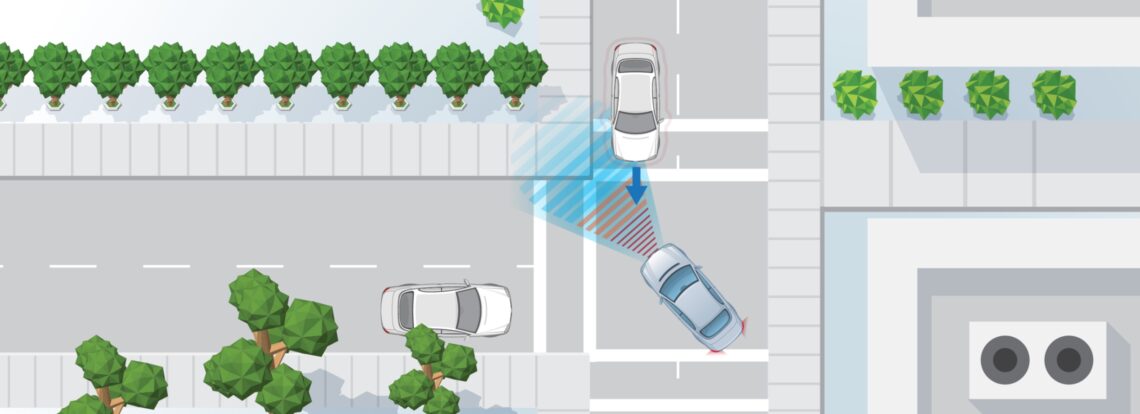
FCA-JT enhances driver safety when making left-hand turns across intersections. If an oncoming vehicle in an adjacent lane presents a collision risk while your turn signal is active, emergency braking automatically applies to reduce impact or help avoid a crash.
Customizing ADAS Settings & Warning Volume:
- Go to
Settings > Vehicle > Driver Assistance > Forward Safetyto choose between Active Assist, Warning Only, or Off. - To adjust warning chime loudness, tap
Settings > Vehicle > Driver Assistance > Warning Volumeand choose High, Medium, or Low.
Section FAQs: ADAS & Driver Safety
4. All-Terrain Capability & Drive Modes
Terrain Mode Settings
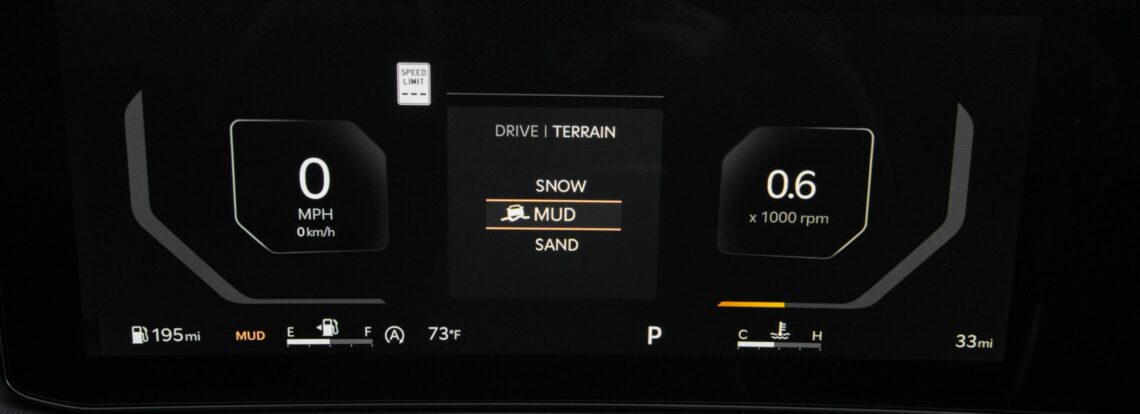
For drivers taking on slippery seasonal weather, unpaved roads, or muddy trails, models equipped with Terrain Mode provide tailored traction management.
- Location: Dedicated switch mounted on the right side of the steering wheel control panel.
- Modes: Toggle between Mud, Sand, and Snow modes to optimize engine torque, shift points, and wheel slippage control automatically.
Section FAQs: Terrain & Drive Modes
Experience the 2026 Kia Sportage at Greenway Kia West
Explore our latest inventory in Orlando, lock in additional pricing discounts with our online Express CTA tools, or get a quick, transparent trade-in estimate using our Instant Vehicle Value tool today!
5. Compare the 2026 Kia Sportage vs. The Competition
See how the 2026 Sportage stacks up against other popular crossovers in key technology, interior space, and value metrics:
2026 Sportage vs. Toyota RAV4 →
2026 Sportage vs. Honda CR-V →
2026 Sportage vs. Hyundai Tucson →
Explore Current Vehicle Specials →
Section FAQs: Vehicle Comparisons
0 comment(s) so far on 2026 Kia Sportage Technology Guide: Master Every Feature at Greenway Kia West